

Subscribe to AccessBit Newsletter
Accessibility

.jpg)
TL;DR
- Web accessibility barriers are design, content, or technical issues that prevent people with disabilities from accessing or using a website effectively.
- Some of the most common web accessibility barriers include missing alt text, poor color contrast, inaccessible forms, lack of keyboard navigation, missing video captions, and unclear link text.
- These barriers can affect people with visual, auditory, motor, cognitive, and neurological disabilities.
- Most accessibility barriers can be prevented by following WCAG (Web Content Accessibility Guidelines) and incorporating accessibility into the design and development process.
- Improving accessibility helps organizations comply with legal requirements, reach more users, improve SEO, and create a better experience for everyone.
The internet is one of the most important tools for communication, education, commerce, healthcare, and everyday life. Yet millions of people still encounter websites that are difficult, or sometimes impossible, to use because of accessibility barriers.
A website may look perfectly functional to its creators while presenting significant challenges for users who rely on screen readers, keyboard navigation, captions, voice control software, magnification tools, or other assistive technologies. Something as simple as missing alternative text on an image, low color contrast, or an inaccessible form can prevent users from accessing critical information or completing important tasks.
Web accessibility is about ensuring that everyone, regardless of ability, can perceive, understand, navigate, and interact with digital content. Accessibility barriers occur when websites fail to account for the diverse ways people access and use the web.
In this blog, we'll explore the most common web accessibility barriers, who they affect, why they matter, and how to fix them.
What Are Web Accessibility Barriers?
Web accessibility barriers are obstacles in website design, content, or functionality that prevent people with disabilities from accessing, understanding, or interacting with digital content effectively.
Accessibility barriers occur when websites assume that all users interact with content in the same way. In reality, people access the web using a wide variety of devices, assistive technologies, and interaction methods. Some users rely on screen readers to interpret content, while others navigate entirely by keyboard or use voice commands instead of a mouse. Many users need captions, transcripts, text enlargement, high-contrast displays, or simplified content structures to access information effectively.
When websites fail to accommodate these needs, barriers emerge. These obstacles can make it difficult or even impossible for users to browse content, complete purchases, submit forms, access services, or consume information.
Many accessibility barriers are unintentional. They often result from design decisions, development shortcuts, or content publishing practices that overlook accessibility requirements. However, the impact can be significant. A missing form label, inaccessible PDF, or poorly structured page may seem minor to some users but can completely block access for others.
The goal of accessibility is not simply to satisfy compliance requirements. It is to create digital experiences that can be used by as many people as possible, regardless of disability, technology, environment, or circumstance.
The 4 Main Types of Accessibility Barriers
Most web accessibility issues fall into four primary categories, although some experts also recognize a fifth category for temporary or situational barriers.
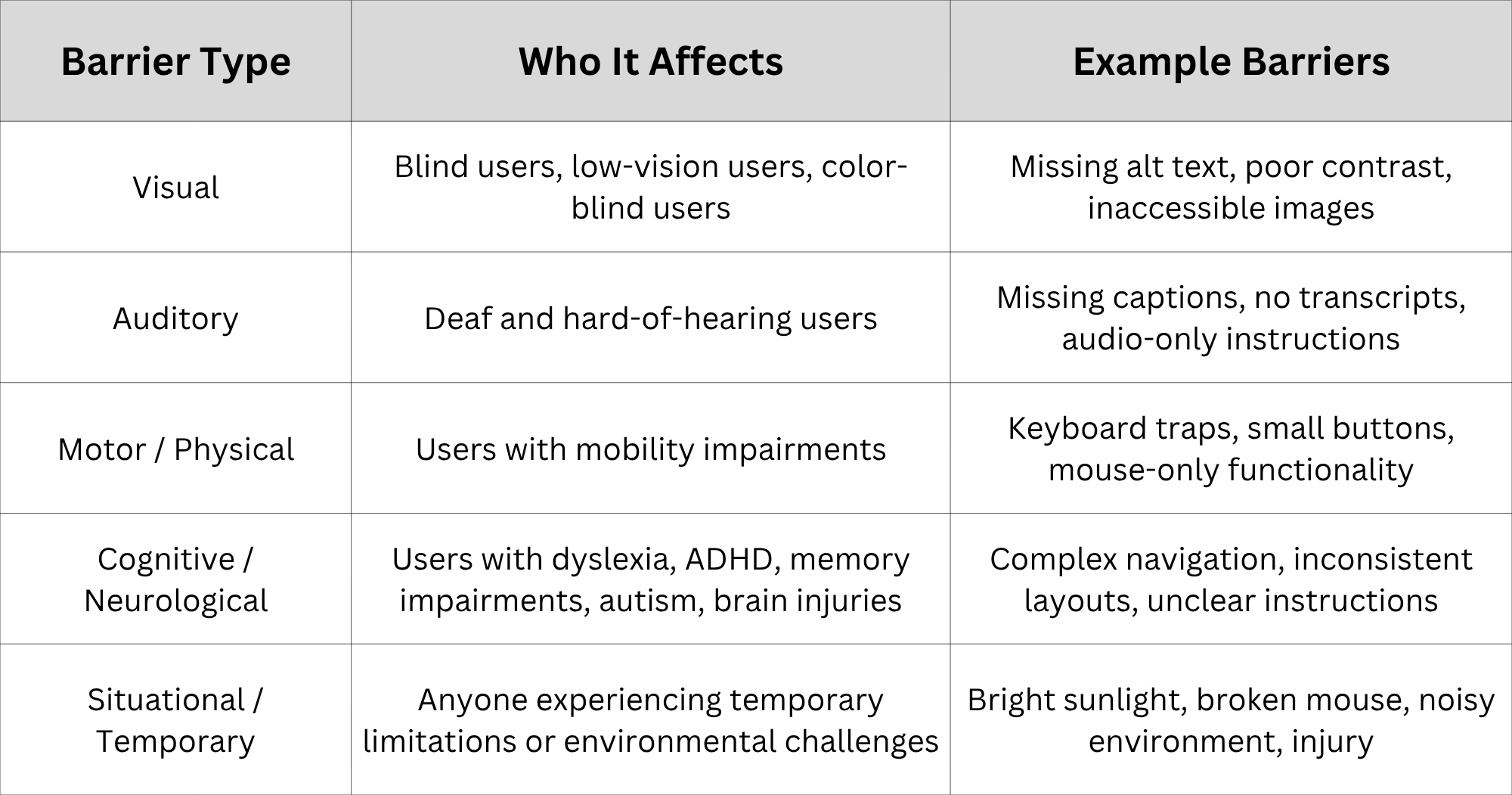
Although accessibility is often discussed in the context of permanent disabilities, barriers can affect virtually anyone. A person with a temporary wrist injury may struggle to use a mouse. Someone in a noisy environment may rely on captions. A user browsing on a mobile device in bright sunlight may need stronger contrast. This is why accessible design tends to improve usability for everyone, not just people with disabilities.
Common Web Accessibility Barriers & How to Fix Them
Below are some common web accessibility barriers and tips on how to fix them:
1 . Missing or Poor Alt Text
Affects: Blind users, screen reader users
Alternative text, commonly known as alt text, allows screen readers to describe images to users who cannot see them. When images are missing alt text, important information may be lost entirely. Even when alt text exists, generic descriptions such as "image.jpg" or "graphic" provide little value.
How to fix it: Provide meaningful alt text that accurately describes the image's purpose or content. Decorative images that do not communicate information should use empty alt attributes (alt="") so assistive technologies can ignore them. Good alt text focuses on the image's meaning rather than simply describing visual details.
2. Low Color Contrast
Affects: Low-vision users, color-blind users, aging users
Poor color contrast makes text difficult to read and interface elements difficult to distinguish. Light gray text on a white background, for example, may appear stylish but can be nearly unreadable for many users.
How to fix it: Follow WCAG color contrast requirements and test color combinations using accessibility contrast checkers. Strong contrast improves readability for everyone, including users viewing content on mobile devices, low-quality screens, or in bright environments.
3. No Keyboard Navigation
Affects: Users with motor impairments, screen reader users
Many users cannot use a mouse due to mobility limitations and rely entirely on keyboard navigation. If menus, buttons, forms, or interactive elements cannot be reached through keyboard controls, critical website functionality becomes inaccessible.
How to fix it: Ensure all interactive elements can be accessed and operated using standard keyboard commands such as Tab, Shift + Tab, Enter, Space, and arrow keys. Users should be able to navigate every part of the website without needing a mouse.
4. Unlabeled or Inaccessible Forms
Affects: Screen reader users, users with cognitive disabilities
Forms are one of the most common sources of accessibility issues. Without proper labels and instructions, users may not understand what information is required or how to complete fields correctly.
How to fix it: Every form field should have a visible label, proper HTML associations, accessible validation messages, and clear instructions. Placeholder text should not be used as a substitute for labels because it often disappears when users begin typing.
5. Missing Video Captions and Transcripts
Affects: Deaf and hard-of-hearing users
Video content that relies solely on audio excludes users who cannot hear spoken information. This can make educational videos, webinars, tutorials, and presentations inaccessible.
How to fix it: Provide accurate captions, subtitles, and transcripts for multimedia content. Where visual information is essential to understanding the content, audio descriptions may also be necessary. Captions often benefit users without disabilities as well, particularly in noisy environments.
6. Poor Heading Structure
Affects: Screen reader users, cognitive disability users
Headings provide structure and help users understand how information is organized. When headings are missing, used inconsistently, or arranged incorrectly, navigation becomes more difficult.
How to fix it: Use a logical heading hierarchy. Each page should generally contain one H1 heading, followed by H2 headings for major sections and H3 headings for subsections. Consistent structure improves navigation, comprehension, and accessibility.
7. Vague Link Text
Affects: Screen reader users
Links labeled "Click Here," "Learn More," or "Read More" often lack sufficient context. Screen reader users frequently navigate pages by reviewing lists of links, making descriptive link text essential.
How to fix it: Use meaningful link text that explains the destination or action. For example, "Download the 2026 Accessibility Guide" provides far more context than a generic "Click Here" link.
8. Unidentified Form Errors
Affects: All users, especially screen reader users
When users submit a form and encounter an error, they need to understand what went wrong and how to fix it. Vague or inaccessible error messages can create frustration and prevent successful completion.
How to fix it: Clearly identify which field contains an error, explain the issue, and provide instructions for resolving it. Error messages should also be accessible to screen readers and other assistive technologies.
9. Auto-Playing or Moving Content
Affects: Users with cognitive disabilities, vestibular disorders, attention-related conditions
Unexpected movement, animations, and automatically playing media can be distracting and, in some cases, physically uncomfortable. Some users may experience dizziness, nausea, or difficulty concentrating.
How to fix it: Give users control over moving content by allowing them to pause animations, stop carousels, and disable auto-playing media. Avoid automatically playing audio whenever possible.
10. Time Limits
Affects: Users with cognitive disabilities and motor impairments
Strict time limits can prevent users from completing forms, purchases, applications, or other important tasks. Some users require additional time to read, process information, or interact with content.
How to fix it: Allow users to extend sessions, save progress, pause timers, or request additional time when needed. Users should have sufficient opportunity to complete tasks without unnecessary pressure.
11. Relying on Color Alone
Affects: Color-blind users
Using color as the sole method of communicating information can create accessibility barriers. For example, indicating errors only through red text may leave some users unaware that a problem exists.
How to fix it: Combine color with additional indicators such as icons, labels, patterns, or explanatory text. Information should remain understandable regardless of a user's ability to perceive specific colors.
12. Small Touch Targets
Affects: Users with motor impairments, mobile users
Buttons, links, and interactive controls that are too small can be difficult to select accurately. This issue is particularly common on mobile devices and touchscreens.
How to fix it: Increase the size of clickable elements and maintain sufficient spacing between interactive controls. Larger touch targets improve usability and reduce accidental clicks.
13. Inaccessible PDFs
Affects: Screen reader users, keyboard-only users
Many organizations publish important information in PDF format without considering accessibility requirements. Untagged PDFs can be difficult or impossible for assistive technologies to interpret correctly.
How to fix it: Create accessible PDFs using proper heading structures, alternative text, logical reading order, and keyboard accessibility features. Whenever possible, provide critical information directly on web pages instead of exclusively within PDF documents.
Why Accessibility Barriers Matter
Accessibility barriers affect real people attempting to access information, services, healthcare resources, education, government services, employment opportunities, and online commerce. When websites are inaccessible, users may be excluded from participating fully in digital life.
According to the World Health Organization (WHO), approximately 16% of the global population lives with a significant disability. That represents more than one billion people worldwide. Ignoring accessibility means potentially excluding a substantial portion of your audience from using your website.
Accessibility also has important legal implications. Many organizations are expected to comply with standards and regulations such as the Americans with Disabilities Act (ADA), the European Accessibility Act (EAA), WCAG conformance requirements, and various national accessibility laws. Failure to address accessibility barriers can lead to complaints, legal challenges, reputational damage, and lost business opportunities.
Beyond compliance, accessibility provides significant business benefits. Accessible websites often achieve better usability, improved search engine visibility, higher engagement rates, broader audience reach, and stronger brand trust. In many cases, accessibility improvements enhance the experience for all users, not just those with disabilities.
Accessibility is ultimately both a legal consideration and a business advantage—but most importantly, it is about ensuring equal access to digital experiences.
How to Identify Barriers on Your Website
Finding accessibility barriers requires a combination of automated testing and manual evaluation. While accessibility tools can identify many common issues, no automated solution can detect every barrier.
Automated accessibility scanners can quickly identify problems such as missing alt text, contrast failures, missing form labels, structural markup errors, and other technical issues. These tools provide a useful starting point and can help teams uncover obvious violations efficiently.
However, automated testing alone is not sufficient. Manual testing is essential for evaluating real-world usability. One of the most effective methods is keyboard-only testing, where users attempt to navigate the entire website without using a mouse. This helps identify navigation barriers and inaccessible interactive elements.
Screen reader testing is equally important. Testing with assistive technologies such as NVDA, JAWS, or VoiceOver can reveal issues that automated tools often miss. Content reviews should also assess readability, structure, heading hierarchy, form usability, and link clarity.
Accessibility experts commonly note that automated tools detect only a portion of accessibility issues. For this reason, the most reliable approach combines automated scans, manual testing, assistive technology testing, and ongoing accessibility audits.
Best Practices to Prevent Accessibility Barriers
The most effective way to address accessibility barriers is to prevent them from being introduced in the first place. Accessibility should be integrated into every stage of the design, development, and content creation process rather than treated as an afterthought.
Organizations should follow WCAG guidelines, use semantic HTML, maintain sufficient color contrast, create accessible forms, write meaningful alt text, and provide captions and transcripts for multimedia content. Consistent heading structures, descriptive link text, and keyboard-accessible interfaces should be standard practice across all digital properties.
Regular accessibility testing is equally important. Websites evolve over time as new content, features, and integrations are added. Ongoing audits help ensure that accessibility improvements remain effective and that new barriers are identified before they affect users.
Ultimately, accessibility is not a one-time project. It is an ongoing commitment to creating inclusive digital experiences.
How to Make Your Site Accessible with AccessBit
Creating an accessible website requires a combination of source-level accessibility improvements and user-focused accessibility tools. While accessible coding and design remain essential, many organizations also choose to provide visitors with additional customization options that enhance usability.
AccessBit helps website owners improve accessibility by offering adjustable accessibility controls and continuous accessibility monitoring for Webflow websites. Visitors can customize settings such as contrast modes, text size, color adjustments, reading enhancements, and screen-reader support features to better match their individual needs.
In addition, AccessBit continuously monitors websites for accessibility concerns as content and designs evolve over time. This helps organizations identify potential issues earlier and maintain accessibility standards more consistently.
However, it is important to understand that accessibility widgets and overlays are not a complete replacement for accessible development practices. Problems such as missing form labels, poor semantic structure, inaccessible code, and other source-level barriers should still be addressed directly within the website itself.
The most effective accessibility strategy combines WCAG-compliant development, regular testing, ongoing monitoring, and user-focused tools such as AccessBit. Together, these approaches can help create a more inclusive and accessible web experience. If you are curious to learn more about accessibility strategies and how AcccessBit can help, do not hesitate to get in touch with us.
Frequently Asked Questions
1. What are the most common web accessibility barriers?
The most common web accessibility barriers include missing alt text, poor color contrast, inaccessible forms, lack of keyboard navigation, missing video captions, vague link text, auto-playing content, and inaccessible PDFs. These issues can prevent users with disabilities from accessing information, completing tasks, or interacting with websites effectively.
2. What are the 4 types of accessibility barriers?
The four primary types of accessibility barriers are visual, auditory, motor/physical, and cognitive/neurological barriers. Each category affects different groups of users and requires different accessibility solutions. Many accessibility professionals also recognize situational barriers that affect users temporarily or because of environmental conditions.
3. How do I check my website for accessibility barriers?
Start with automated accessibility testing tools to identify technical issues such as missing alt text, contrast problems, and form labeling errors. Then perform manual testing using keyboard navigation, screen readers, and usability reviews. Combining automated and manual testing provides the most accurate assessment of accessibility.
4. What laws require websites to be accessible?
Website accessibility requirements may arise from laws such as the ADA in the United States, the European Accessibility Act in the European Union, and various national accessibility regulations. Many organizations use WCAG as the primary technical standard for meeting accessibility expectations and demonstrating compliance.
5. How can I make my website accessible?
You can improve website accessibility by following WCAG guidelines, using semantic HTML, providing alternative text, ensuring keyboard accessibility, adding captions and transcripts, improving color contrast, creating accessible forms, and conducting regular accessibility audits. Accessibility should be incorporated throughout the entire website lifecycle.


