

Subscribe to AccessBit Newsletter
Accessibility

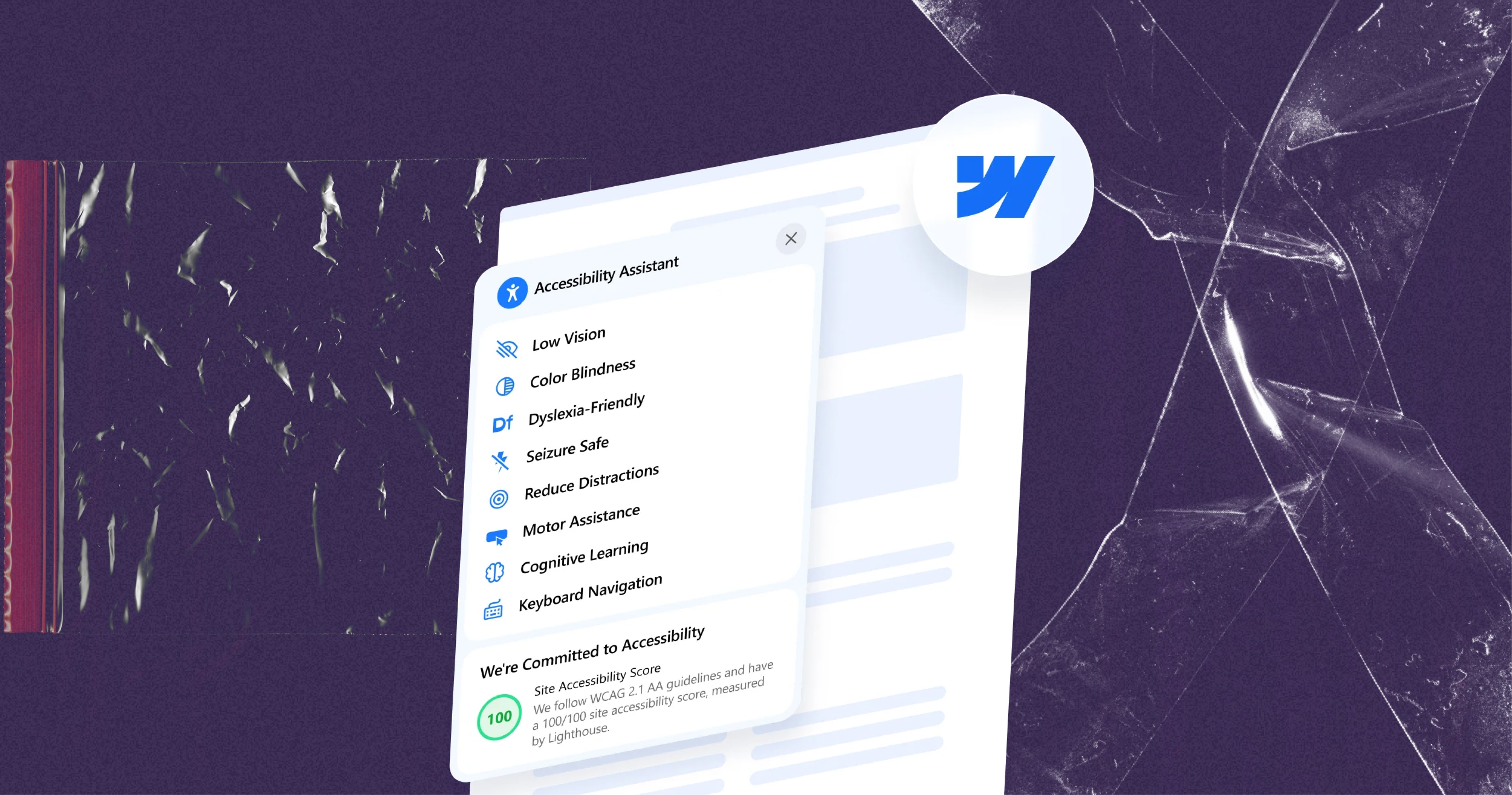
Creating a website that everyone can use is more than just good practice, it’s a necessity. Accessibility ensures that all visitors, including those with disabilities, can engage with your site’s content, navigate its structure, and interact with its features effectively. Webflow provides a solid foundation for accessibility, but achieving full compliance requires intentional design, careful planning, and ongoing testing. In this guide, we’ll walk you through how to make your Webflow site accessible for everyone, step by step.
Understand Web Accessibility Basics
Accessibility is about creating a website that can be used by people with a wide range of abilities. International standards like the Web Content Accessibility Guidelines (WCAG) define what accessibility means in practical terms, emphasizing that content should be perceivable, operable, understandable, and robust.
By following these principles, you not only help users with disabilities but also improve the overall usability of your website for everyone.
- Use Semantic HTML Structure
A proper HTML structure is essential for accessibility because it helps browsers and assistive technologies interpret your content correctly. Use heading tags (H1–H6) to create a clear content hierarchy. Include semantic elements like <nav>, <main>, and <footer> to establish logical navigation.
When building in Webflow, you can create components such as buttons, forms, and content blocks that maintain consistent structure across your site. Proper use of Webflow properties ensures that these components are accessible, and a well-thought-out tab order allows keyboard users and screen reader users to navigate your site smoothly.
- Optimize Color Contrast and Visual Design
Color and visual design are critical accessibility factors. Ensure that text and background colors have sufficient contrast, ideally a ratio of at least 4.5:1, so that all users can read content clearly. Avoid conveying information using color alone; instead, incorporate text labels or icons for clarity.
Using high-contrast, accessible designs not only benefits users with visual impairments but also improves readability in challenging lighting conditions, on mobile devices, or in situations where users are colorblind.
- Add Meaningful Alt Text for Images
Images are important for visual storytelling, but they must be accessible to everyone. Provide descriptive Webflow alt text for each image, explaining its purpose and meaning. For purely decorative images, use empty alt attributes (alt="") to allow screen readers to skip them.
Alt text is also essential for SEO, giving search engines a textual representation of your visuals. When combined with clear image descriptions, it ensures that both users and search engines can understand the content of your site.
- Ensure Keyboard Navigation Support
Many users navigate the web using only a keyboard. Test your Webflow site by tabbing through every interactive element to make sure focus moves logically. Avoid keyboard traps, where users cannot move away from certain components, and provide visible focus indicators such as outlines or highlights to show which element is active.
Keyboard-friendly navigation is vital for users with motor disabilities, screen reader users, and even power users who prefer not to use a mouse.
- Incorporate ARIA Labels and Landmarks
Accessible Rich Internet Applications (ARIA) attributes enhance accessibility for dynamic and interactive content. Add ARIA labels and roles to clarify the purpose of buttons, links, or other interactive elements. However, use ARIA selectively, overuse can confuse assistive technologies. Whenever possible, stick to native HTML elements for better compatibility.
- Provide Captions and Transcripts for Media
Videos and audio content must also be accessible. Include captions for spoken dialogue and sound effects, and provide transcripts for podcasts, webinars, or interviews. These measures support users with hearing impairments and also help viewers who cannot play audio in certain environments.
Adding captions and transcripts also provides SEO benefits, as the text can be indexed by search engines.
- Optimize Form Accessibility
Forms are essential for user interaction but often present accessibility challenges. Ensure that every input field has a clear label or placeholder. Group related options together, display meaningful error messages, and automatically return focus to any fields that require correction.
Accessible forms improve user experience, reduce frustration, and help ensure that all visitors can complete desired actions on your site.
- Test Accessibility Regularly
Accessibility is an ongoing effort, not a one-time fix. Use automated testing tools such as WAVE, Lighthouse, or Axe DevTools to identify issues, but don’t rely on automation alone. Perform manual checks using keyboards, screen readers, and other assistive technologies. Collect feedback from real users to find hidden barriers.
Maintain a Webflow accessibility checklist to keep track of accessible design practices and ensure consistent improvements across your site.
- Leverage Webflow Accessibility Features
Webflow offers several built-in tools to help make your site accessible. Use the accessibility panel to set alt text, ARIA labels, and tab order. Review heading structure and link text consistency before publishing each page. Using Webflow create components ensures reusable elements remain accessible across your entire site. Additionally, integrating a Webflow accessibility plugin can automate checks and make the process faster.
Conclusion
Creating an accessible Webflow website is a commitment to inclusion, usability, and professional design. By following these strategies, using semantic HTML, optimizing color contrast, adding meaningful alt text, ensuring keyboard navigation, incorporating ARIA labels, providing captions and transcripts, optimizing forms, and testing regularly, you can make your Webflow site accessible for everyone.
Accessibility benefits all users, improves SEO, ensures ADA compliant Webflow standards, and reflects a brand that cares about its audience. Making the web accessible starts with thoughtful design choices today, and the tools and strategies provided in Webflow make it achievable for every website owner. For more information, get in touch with AccessBit today.
FAQ
1. What is Webflow accessibility?
Webflow accessibility refers to designing and building Webflow websites that can be used by all people, including those with disabilities. It involves following best practices like semantic HTML, keyboard navigation support, ARIA labels, color contrast optimization, and providing alt text for images.
2. How can I make my Webflow site accessible for free?
You can make your Webflow site accessible for free by using Webflow’s built-in accessibility tools, creating components with proper headings and properties, adding descriptive alt text, ensuring keyboard navigation, and regularly testing your site using free tools like WAVE or Lighthouse.
3. Are there plugins to improve Webflow accessibility?
Yes! Webflow accessibility plugins can help automate checks, provide real-time feedback, and enhance your site’s ADA compliance. These plugins work alongside Webflow’s built-in features to improve alt text, ARIA attributes, and keyboard navigation.
4. What are components in Webflow, and how do they affect accessibility?
Components in Webflow are reusable design elements like buttons, forms, and cards. When designed with accessibility in mind, these components ensure consistent structure, proper tab order, and semantic HTML, making it easier to maintain an accessible website.
5. Is creating an ADA-compliant Webflow site difficult?
Creating an ADA-compliant Webflow site requires attention to detail and ongoing testing. By following accessibility best practices, such as using alt text, captions, keyboard navigation, ARIA labels, and semantic HTML, you can achieve compliance without advanced coding skills.


